Coming Soon! Octoo is migrating to a new calendar-based availability feature!
This feature is coming soon! In the meantime, existing Away and Weekly Availability settings will continue to work and will be automatically migrated when the new Availability calendar launches.
Octoo is migrating to a new calendar-based availability system where providers can manage their availability directly from the Calendar. Partners can also view and manage a provider's availability from the provider's profile. This replaces the legacy Availability features of Away and Weekly Availability.
How availability works
Octoo uses availability information to contact providers at the right time with the right opportunities. When a new request comes in, the system checks each provider's availability before sending broadcast notifications:
Not available — The provider will not be emailed for any Opportunities that overlap with the blocked time. However, these opportunities will still appear in the provider's still available list, so the provider can still express interest if their plans change.
Remote only — The provider will not be emailed for on-site jobs during the blocked time but will still receive email broadcasts for remote opportunities.
Setting availability only affects automated email broadcasts. Partners can still manually assign a provider to a job during blocked times, and providers can still browse and express interest in opportunities from the Opportunities page.
What's changing
The legacy availability settings are configured from the provider's profile under Settings > Availability:
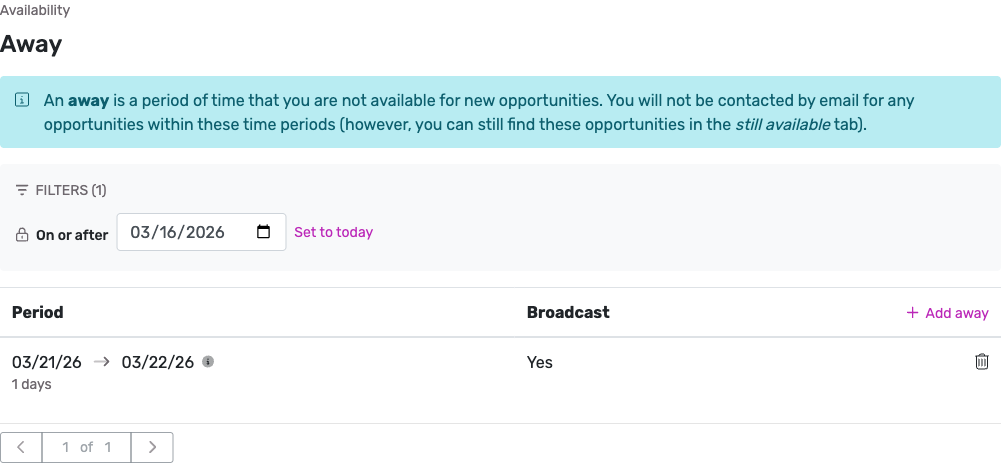
Away (legacy)
Away periods let a provider block off specific date ranges when they are completely unavailable.
The legacy Away settings page under Settings > Availability > Away.
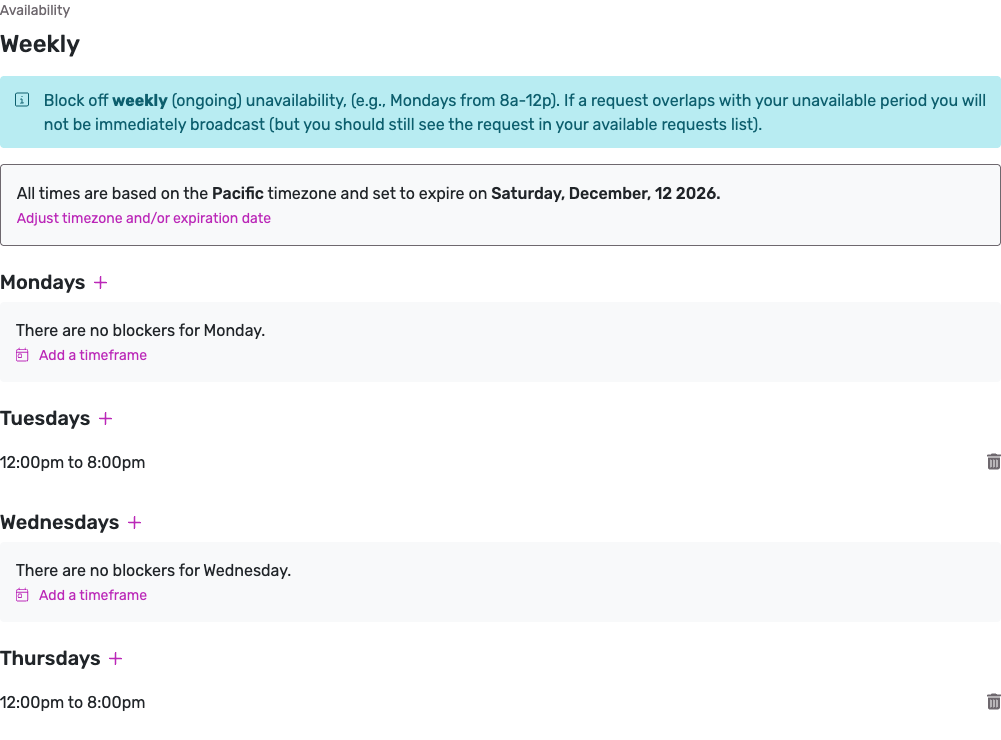
Weekly Availability (legacy)
Weekly blockers let a provider define recurring times each week when they are not available (e.g., every Tuesday and Thursday from 12pm to 8pm).
The legacy Weekly Availability settings page under Settings > Availability > Weekly.
How it looks on the calendar
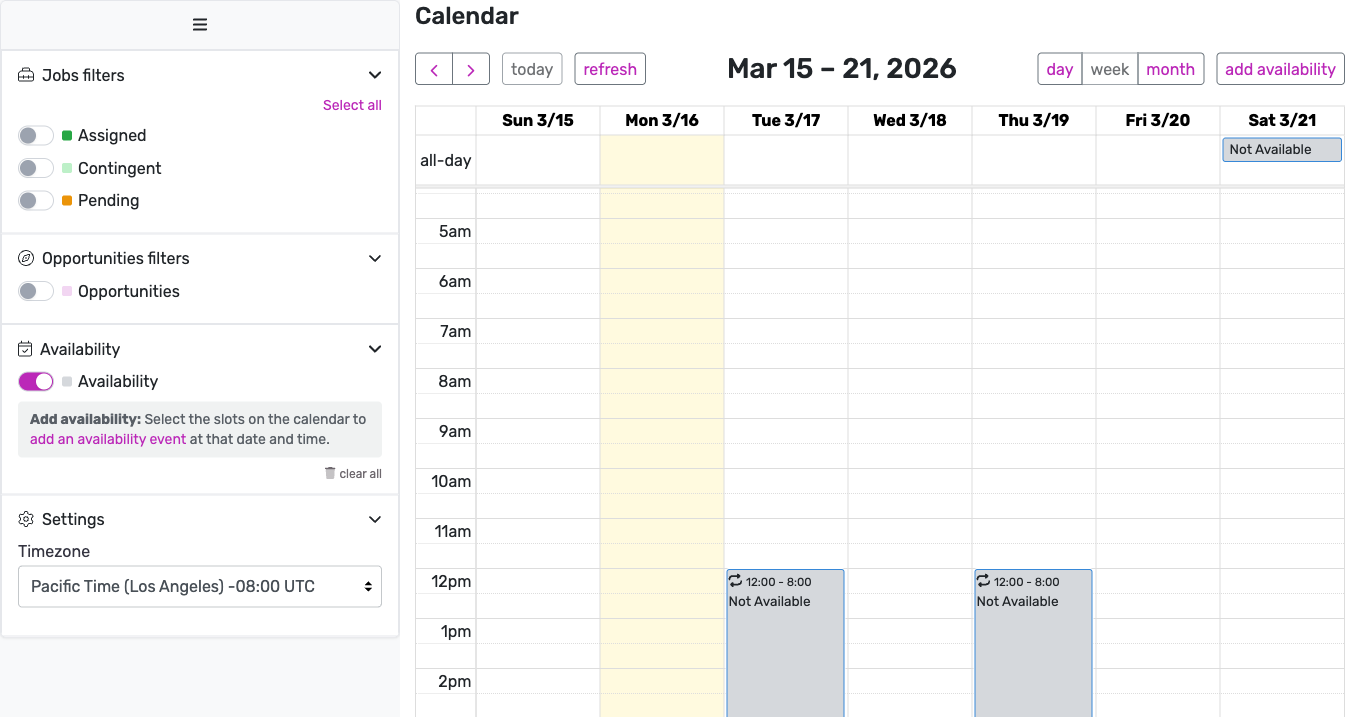
Both Away periods and Weekly Availability blockers appear as "Not Available" events on the calendar. Weekly blockers show as recurring time-based events, while Away periods show as all-day events.
The calendar showing migrated availability: weekly blockers on Tuesday and Thursday (12pm–8pm) and an all-day Away period on Saturday.
Availability events can be toggled on or off using the Availability filter in the sidebar.
Adding availability
There are two ways to add availability from the calendar:
Using the button
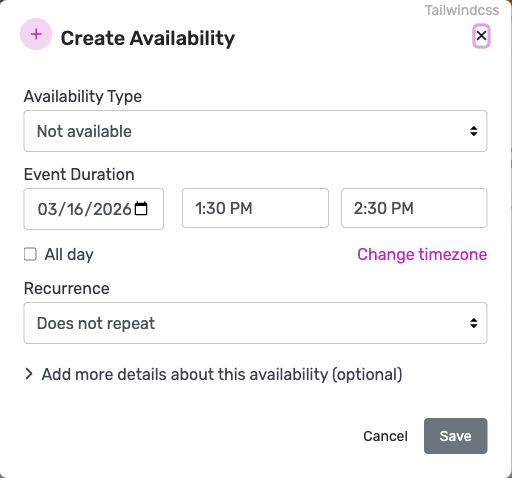
Click the add availability button in the top-right corner of the calendar to open the Create Availability modal.
The Create Availability modal lets the provider set the type, date, time range, and recurrence pattern.
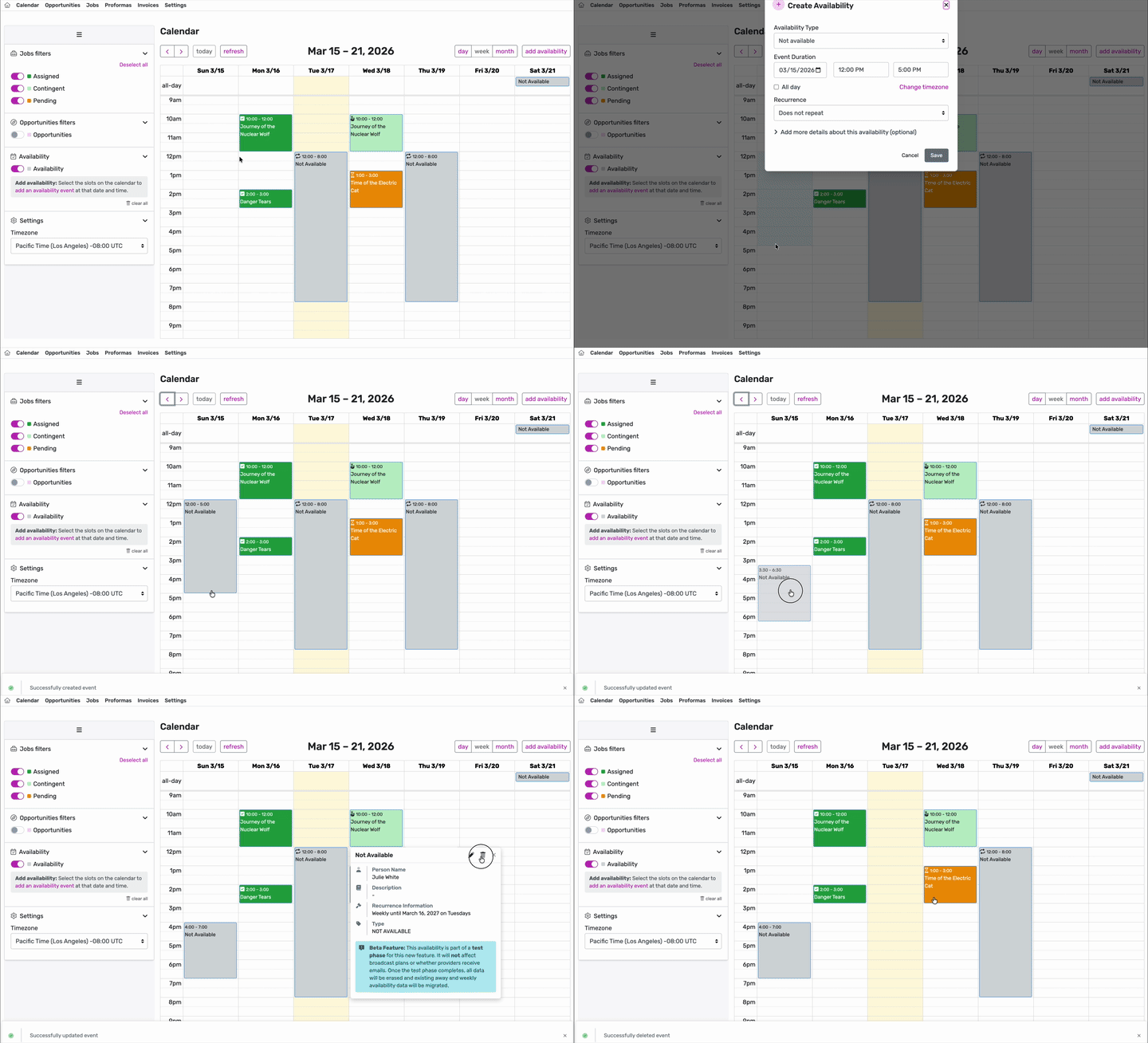
The modal includes the following fields:
Availability Type — Choose between Not available (the provider cannot work during this time) or Remote only (the provider is available but only for remote jobs).
Event Duration — Set the date, start time, and end time. Check All day to block off an entire day. Use Change timezone to enter times in a different timezone.
Recurrence — Set the event to repeat on a schedule:
Does not repeat (one-time event)
Daily
Weekly on a specific day
Monthly on a specific date
Every weekday (Monday to Friday)
Custom (for more advanced patterns)
Add more details — Optionally add a note about why the provider is unavailable.
Click Save to add the availability event to the calendar.
Dragging on the calendar
Availability can also be added by clicking and dragging directly on the calendar grid to select a time range. This opens the Create Availability modal with the date and time pre-filled based on the selection.